How to Improve Privacy on iPhone Using a VPN
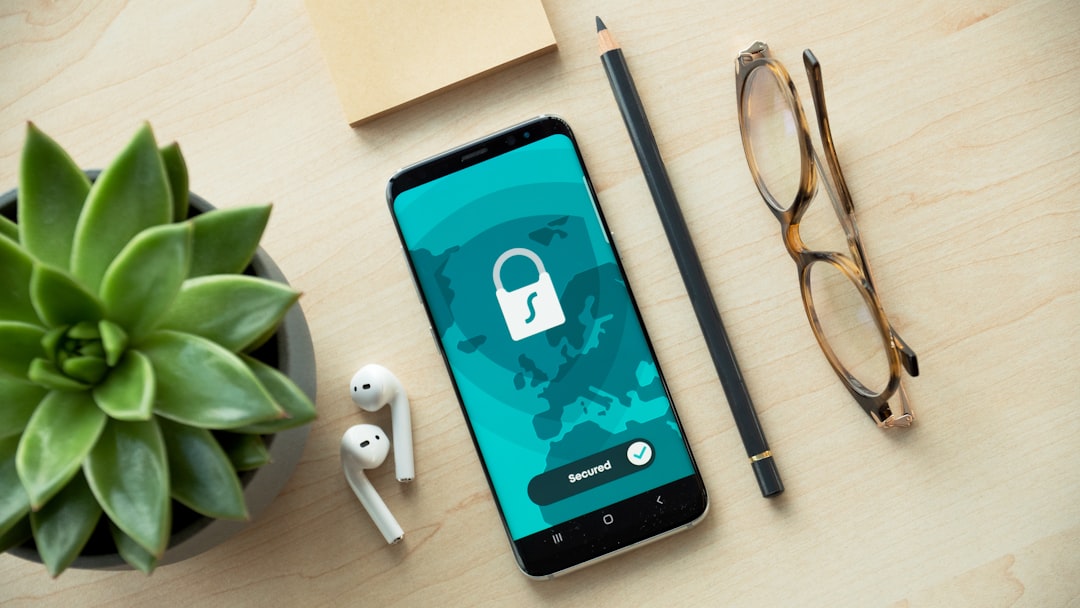
Your iPhone tracks more than you think. Every app you use, every website you visit, and every public Wi-Fi network you connect to can expose your personal data to third parties. A VPN (Virtual Private Network) creates an encrypted tunnel between your iPhone and the internet, making it significantly harder for anyone to monitor your online activity. In this guide, you'll learn exactly how a VPN improves iPhone privacy and how to set one up in minutes.
Why Your iPhone Needs Privacy Protection
Apple devices come with built-in security features, but they don't protect you from everything. Your internet service provider (ISP) can see every website you visit. Apps collect data about your location and browsing habits. Public Wi-Fi networks at coffee shops and airports are vulnerable to hackers who can intercept your data. Without additional protection, your iPhone's privacy is compromised in several ways:
- ISP tracking: Your cellular provider logs your browsing history and can sell this data to advertisers
- App tracking: Many apps collect location data and share it with third-party companies
- Public Wi-Fi risks: Unsecured networks expose your passwords and personal information to nearby attackers
- Website tracking: Sites use your IP address to build profiles about your interests and behavior
A VPN addresses all these privacy concerns by hiding your real IP address and encrypting your internet traffic before it leaves your device.
How VPNs Protect Your iPhone Privacy
When you activate a VPN on your iPhone, it routes all your internet traffic through an encrypted server. This process provides multiple privacy benefits. First, your real IP address gets replaced with the VPN server's IP address, making it impossible for websites to identify your actual location. Second, encryption scrambles your data so that even if someone intercepts it on public Wi-Fi, they can't read it. Third, your ISP can only see that you're connected to a VPN server, not which websites you're visiting.
| Privacy Threat | Without VPN | With VPN |
|---|---|---|
| ISP Tracking | Full browsing history visible | Only VPN connection visible |
| Public Wi-Fi Hacking | Data easily intercepted | Encrypted and protected |
| IP Address Tracking | Real location exposed | VPN server location shown |
| App Data Collection | Real IP logged by apps | VPN IP address logged |
The encryption happens automatically once you connect. Most quality VPN services use AES-256 encryption, the same standard used by banks and governments to protect classified information.
Setting Up a VPN on Your iPhone
Installing a VPN on your iPhone takes just a few minutes. Apple makes the process straightforward through the App Store. Here's how to get started:
- Choose a reputable VPN provider: Look for services with a no-logs policy, strong encryption, and positive reviews from privacy experts
- Download the app: Go to the App Store and search for your chosen VPN service
- Create an account: Most VPN apps require a subscription, though some offer free trials
- Install the VPN profile: The app will ask permission to add VPN configurations to your iPhone settings
- Connect to a server: Open the app and tap the connect button to activate the VPN
Once connected, you'll see a small VPN icon at the top of your iPhone screen. This indicates that all your internet traffic is now encrypted and routed through the VPN server. You can disconnect anytime by opening the app or going to Settings > VPN and toggling it off.
Best Practices for iPhone VPN Privacy
Simply installing a VPN isn't enough. Follow these tips to maximize your iPhone privacy. Always keep the VPN active when using public Wi-Fi at airports, hotels, or coffee shops. Choose VPN servers in privacy-friendly countries that have strong data protection laws. Enable the kill switch feature in your VPN app settings, which blocks all internet traffic if the VPN connection drops unexpectedly. Review your VPN provider's privacy policy to confirm they don't log your browsing activity. Finally, combine your VPN with Safari's Private Browsing mode and disable location services for apps that don't need them.
Remember that a VPN significantly improves your privacy but doesn't make you completely anonymous online. Your VPN provider can technically see your internet traffic, which is why choosing a trustworthy service with a verified no-logs policy is essential. Also consider using privacy-focused browsers and limiting app permissions in your iPhone settings.
Protecting your iPhone privacy doesn't require technical expertise. A VPN provides a simple, effective way to encrypt your internet connection, hide your IP address, and prevent tracking on public networks. Start by choosing a reputable VPN service, install the app, and connect before browsing. Your personal data deserves protection, and these steps put you in control of your digital privacy.